

MCP tools reference
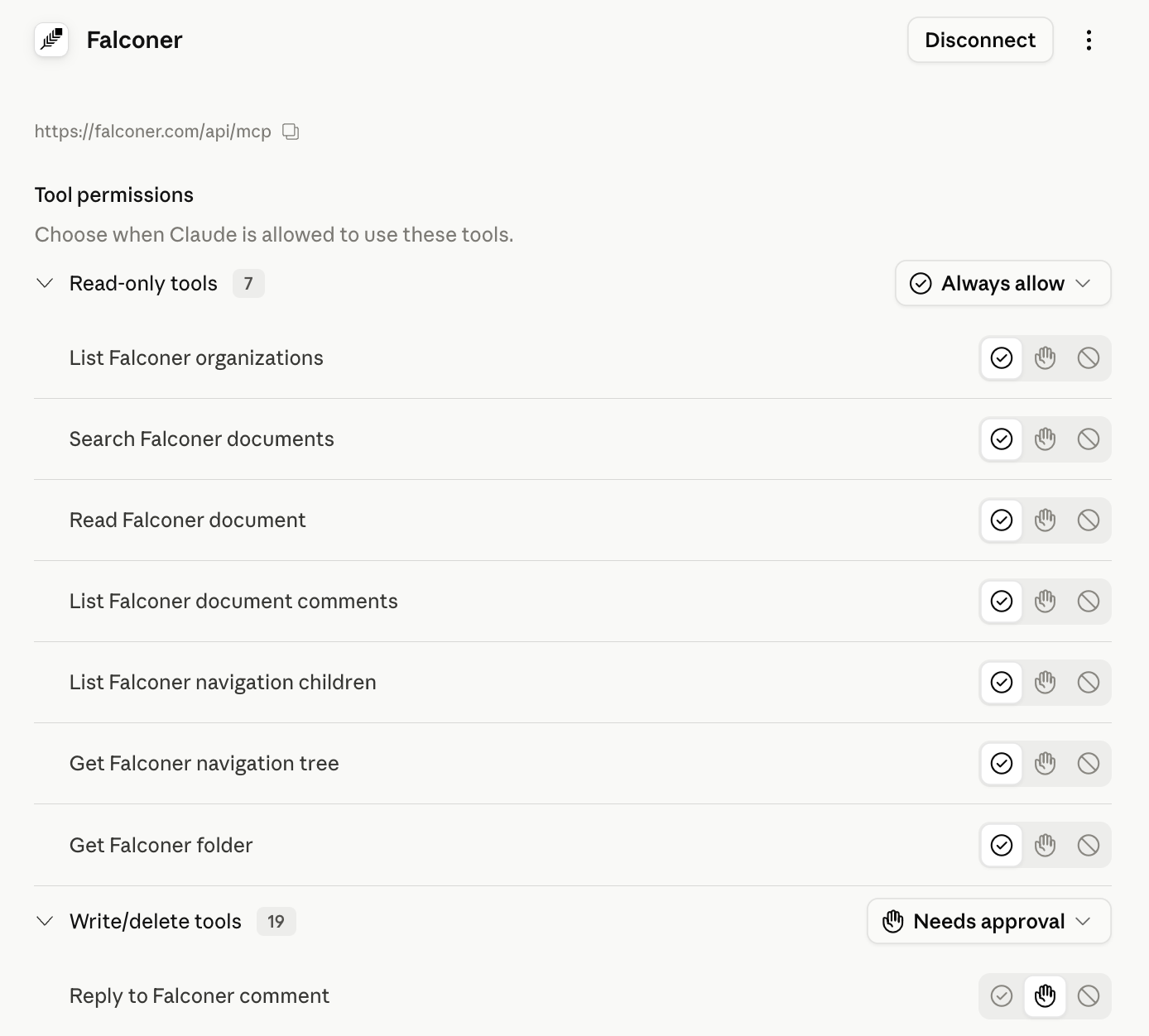
Falconer MCP exposes tools your AI client can use to find, read, create, update, organize, and manage Falconer documents.
Use Falconer knowledge and connected tools
Section titled “Use Falconer knowledge and connected tools”ask_falcon answers questions from your workspace with citations. For an action or a structured result, your AI client can call a named MCP tool directly. In addition to the document tools below, the hosted server exposes tools for searching connected knowledge, code, pull requests, issues, people, meetings, and the user’s connected services. Available tools depend on your permissions, connections, and organization settings.
| Need | Direct tools to look for |
|---|---|
| Find connected knowledge | document_search, meeting_notes_search, source_tree, people_search |
| Explore engineering work | code_search, code_tree, read_file, git_raw, github_pull_request_search, linear_issue_search |
| Work with connected accounts | list_integrations, gmail_search, calendar_list_events, calendar_find_free_time |
| Take an action | linear_create_issue, calendar_create_event, gmail_create_draft, or the document tools below |
A tool is available only when the corresponding source, account, and permission are available to you. A Gmail draft is saved for your review and is not sent. Calendar changes can invite or notify attendees, so inspect the target account and event before calling them. Not every web-chat capability runs in an MCP client: browsing a page, running a coding environment, generating media, and work that depends on a live Falconer conversation stay in the web app.
For example, ask your client to find a relevant document, read it, then use a targeted edit tool to update one section. For calendar changes or external actions, review the exact target and result in your client. ask_falcon remains a question-answering tool; it does not perform document edits on your behalf.
Organization discovery
Section titled “Organization discovery”| Tool | What it does |
|---|---|
list_organizations | Lists Falconer organizations available to the MCP connection. |
If only one organization is available, your client can usually omit organizationId. If multiple organizations are available, pass the selected organizationId on future Falconer tool calls.
Settings, account and billing
Section titled “Settings, account and billing”read_settings and edit_settings also support a knowledge-health scope for the organization’s Knowledge Health settings: schedule, scanned and excluded sources (spaces, repositories and connected apps), finding categories, and the setup of the latest run. The schedule and the excluded sources are editable, one source per add or remove; everything else is set by Falconer admins. It is readable and editable by organization owners, and by members once a Falconer admin lets members edit Knowledge Health settings.
| Tool | What it does |
|---|---|
read_settings | Reads one settings scope: user (display name, model, thinking effort, notification preferences), document (a document or skill by uuid), org (name, description, defaults) or account (plan, credit balance and packs, auto-reload, trial state, seats, pricing, available offer, and the setup steps a new workspace still has open). Every key reports its value, allowed values and whether it is editable. |
edit_settings | Changes settings in one scope. Owners can rename the organization and set its description (org scope) and change the plan (account scope): plan: "trial" starts the free Pro trial; plan: "credits" (pay as you go) opens a Stripe page that saves a card and authorizes automatic credit top-ups without charging anything now; credits.purchase buys a credit pack now; plan: "pro" opens a monthly seat subscription checkout and "pro-annual" a yearly one. Each returns a Stripe-hosted URL in the change detail. credits.autoReload changes the top-up pack and threshold, or turns top-ups off. Seats match workspace membership automatically. On a document (document scope) it sets status, labels, reviewers, appearance, auto-update and custom instructions; type: "skill" turns the document into an agent skill, whose activation, contextKeys and description can be set in the same call. |
create_billing_portal_session | Returns a Stripe-hosted billing portal URL for managing the payment method, seats, and invoices. A workspace that has never been billed has no portal yet; to save a card without charging it, set credits.autoReload or plan: "credits" with edit_settings. |
For the first week, a new workspace’s account scope lists the setup steps its owners still have open in the onboarding key: naming the workspace, connecting a source and choosing a plan. While a step is open, the server also offers an onboard_workspace prompt that walks your agent through them. list_integrations lists every source the workspace can connect, each with a link the person opens in their browser to sign in to the provider; when the flow finishes, the page tells them to go back to their agent. It also reports when a source still needs a step in Falconer (picking Jira or Asana projects, or Confluence spaces), with a link to that step, and the latest indexing run.
Connecting a brand-new account automatically creates its organization server-side, so no tool call is needed to sign up. The plans, seats and credit packs these tools expose are the same ones described in Plans and billing and Buy credits and manage auto reload. Payment details are only ever entered on Stripe-hosted pages opened in a browser. Agents should never ask for card details in chat; after checkout, they read the account scope again to confirm the plan, purchase or auto-reload took effect. Auto-reload is only turned on when you agree to it: paying for a pack with auto-reload saves the card and authorizes Falconer to buy the same pack whenever your balance drops below the threshold you chose. Changes that need approval (for example sharing a document with someone new) are reported as requires_confirmation and have to be approved in the Falconer app.
Find and read documents
Section titled “Find and read documents”| Tool | What it does |
|---|---|
search | Searches Falconer documents by keyword query, semantic query, or both. |
read | Reads a Falconer document by document ID, title, or Falconer URL. Given a file id or file URL, reads a file placed in the navigation instead, with a temporary download link. |
Use search when you do not know the exact document. Use read before editing so the agent can copy exact Markdown text from the current document.
Revisions
Section titled “Revisions”| Tool | What it does |
|---|---|
list_document_revisions | Lists a document’s revisions. Each has a version number, such as v3, that matches the document history. |
read_document_revision | Reads the Markdown content of one revision. Pass the version number, such as 3 or v3. |
create_document_revision | Saves the current content as a new revision. |
restore_document_revision | Restores a document to an earlier revision. |
delete_document_revision | Deletes one revision. |
Create and update documents
Section titled “Create and update documents”| Tool | What it does |
|---|---|
create | Creates a Falconer document from Markdown. |
replace_document_content | Replaces exact Markdown text in a document. |
insert_document_content | Inserts Markdown before or after exact anchor text, or at the start or end of a document. |
delete_document_content | Deletes exact Markdown text from a document. |
apply_document_edits | Applies several text and table edits in one call. Use it to change tables, which read returns as <Table id> blocks. |
edit | Legacy exact replacement tool. Prefer the targeted content tools above. |
overwrite | Replaces the full Markdown body of a document. |
delete | Archives a Falconer document by ID, or deletes a file placed in the navigation by its file id or file URL. |
Prefer replace_document_content, insert_document_content, and delete_document_content for targeted updates. Use overwrite only when the whole document needs to be rewritten.
When custom instructions govern a document, read returns them with a rulesHash. Pass it as customInstructionsHash on every write, or the write is refused. See Set custom instructions for the agent.
Comments
Section titled “Comments”| Tool | What it does |
|---|---|
list_document_comments | Lists comment threads on a Falconer document. |
create_comment | Starts a new comment thread anchored to exact Markdown text from read. It can notify the document creator and mentioned people. |
reply_to_comment | Replies to an existing document comment. |
edit_comment | Edits one of your existing comments. |
delete_comment | Deletes one of your existing comments. |
resolve_comment | Resolves a document comment thread. |
unresolve_comment | Reopens a resolved document comment thread. |
Navigation and folders
Section titled “Navigation and folders”| Tool | What it does |
|---|---|
list_nav_children | Lists visible child folders, documents, and files for a navigation location. |
get_nav_tree | Gets a visible Falconer navigation tree. |
get_folder | Gets folder metadata and visible one-level children. |
create_folder | Creates a Falconer folder. |
update_folder | Updates a folder title or description, and its auto-update setting and mode. Auto-update changes return a preview until you call it again with confirmed: true. |
reorder_folder_children | Sets the full direct-child order for a folder. |
reorder_nav_children | Sets the full direct-child order for a folder or document nav item. |
move_nav_item | Moves a folder, document, or file navigation item. |
move_nav_items | Moves up to 50 folders, documents, or files to one place in a single call. Each item reports moved or failed on its own. |
move_document | Moves a document navigation placement by document ID. |
publish_document | Publishes a private document into company navigation. |
delete_folder | Removes a folder and everything under it. Documents placed only inside it are archived, documents placed elsewhere too are kept, and library files inside it are deleted. |
list_spaces | Lists the Spaces you can view. |
create_space | Creates a Space. Organization owners only. |
convert_folder_to_space | Turns a top-level company folder into a Space and keeps its contents. Organization owners only. |
archive_space | Archives a Space with all its documents. Organization owners only. Use this, not delete_folder, to remove a Space. |
update_space | Changes a Space’s auto-update setting and mode. Returns a preview until you call it again with confirmed: true. |
list_auto_update_approvers | Lists the auto-update reviewers of a document, a folder or the Company space. |
update_auto_update_approvers | Adds or removes auto-update reviewers on a document, a folder or the Company space. |
list_auto_update_history | Lists a Space’s auto-update history, newest first. Needs edit access to the Space. |
list_auto_update_history_documents | Lists all the documents of one auto-update history entry. |
See Auto-update folders and Spaces for how these settings work.
Inspect navigation placement before moving documents or folders. If a document move or publish reports ambiguous placement, retry with the returned sourceNavItemId.
Public docs sites
Section titled “Public docs sites”Tools for managing a space’s docs site. Publishing, settings, passwords, and custom domains need an organization owner.
| Need | Tools |
|---|---|
| Sites and builds | list_docs_sites, get_docs_site, create_docs_site, set_docs_subdomain, trigger_docs_build, list_docs_builds, get_docs_build, publish_docs_build, unpublish_docs_site, cancel_docs_build, delete_docs_build, retry_docs_build_index, request_docs_preview, get_docs_preview, get_docs_broken_links |
| Settings and access | get_docs_site_config, update_docs_site_config, get_docs_redirects, set_docs_redirects, set_docs_site_password, clear_docs_site_password, sign_out_docs_site_visitors |
| Custom domain | get_docs_custom_domain, set_docs_custom_domain, check_docs_custom_domain, activate_docs_custom_domain, disable_docs_custom_domain, remove_docs_custom_domain |
| Site navigation | get_docs_view, create_docs_view_page, create_docs_view_folder, update_docs_view_item, move_docs_view_items, reorder_docs_view_children, remove_docs_view_item |
| Files behind the site | list_file_view_files, read_file_view_file, write_file_view_file, create_file_view_page, create_file_view_directory, move_file_view_file, delete_file_view_file, publish_file_view_page, upload_file_view_file, get_file_view_download_url |
publish_docs_build also rolls back when you pass an older build. set_docs_redirects replaces the whole list, so pass the list you read as base to merge your edits.
Knowledge Health
Section titled “Knowledge Health”Tools for reading and triaging your organization’s Knowledge Health findings from an MCP client.
For how Knowledge Health is set up - its schedule, which sources it scans or excludes, and what the latest run covered - read the knowledge-health scope with read_settings (see Settings, account and billing above); the schedule and source exclusions can be changed the same way with edit_settings.
| Tool | What it does |
|---|---|
knowledge_health_get_summary | Returns the Knowledge Health score, open finding counts by category and severity, the change since the previous run, and the top open findings. |
knowledge_health_list_findings | Lists your organization’s open findings for one category (required), optionally filtered by severity. Returns 20 findings per page by default (up to 50); pass offset for the next page, or titlesOnly to scan a category quickly. |
knowledge_health_update_finding | Updates a finding by its findingKey: set status to resolved or ignored, assign an owner with ownerEmail, or pass ownerEmail: null to clear the owners. |
knowledge_health_get_finding | Returns one finding by its findingKey with its full context: claims, evidence, documents to fix, owners and dates. Works for resolved and ignored findings too. |
Start with knowledge_health_get_summary. Call knowledge_health_list_findings to get each finding’s findingKey, then pass that key to knowledge_health_get_finding or knowledge_health_update_finding. If Knowledge Health is not turned on for your organization, these tools say so instead of returning findings.
Permissions and media
Section titled “Permissions and media”| Tool | What it does |
|---|---|
update_document_permissions | Updates document ACL mode, organization-wide access, public access, user access, or group access. Direct permission changes on inherited documents switch them to explicit mode automatically. |
set_document_status | Sets a document’s status: draft, in_review, approved, authoritative, or outdated. |
list_document_reviewers | Lists the reviewers assigned to a document. |
update_document_reviewers | Adds or removes reviewers by user ID or email. Adding a reviewer gives them comment access if needed and can notify them. |
get_media_download_urls | Returns short-lived download links for Falconer images and videos you can access. Download them right away and do not store the links. |
upload_media | Uploads an image, video, or file attachment (PDF, Office, text, and code files) sent as base64 in the tool call and returns a snippet that can be inserted into document content. Pass placement to also place the file in the navigation. Best for small files or clients that cannot make HTTP requests. |
create_upload | Starts an upload of any supported size and returns a short-lived URL that the client sends the raw file bytes to, so the file never passes through the conversation. |
complete_upload | Finishes an upload started with create_upload and returns the same snippet as upload_media, plus the file’s navigation placement when it was placed. |
By default an upload is an attachment: it only exists inside the documents that insert its snippet. Pass placement: "library" to also place a PDF, Office, image, or video file in the navigation, in the user’s Artifacts folder or under libraryFolder as Artifacts > Subfolder, which is where agents should file documents’ companion files. Pass placement: "navigation" with parentFolderId only when the user names a folder or Space. A placed file is listed by list_nav_children and get_nav_tree as a file item, moved with move_nav_item, read with read, and deleted with delete, all by its file id. A sibling that already holds the name is numbered around unless replace is set, which hands the new bytes to the existing file so its id and links stay valid.
Permissions
Section titled “Permissions”The MCP connection uses the permissions of the authenticated Falconer user or organization bot. Your client can only access documents, folders, comments, and permissions that identity can access in Falconer.
When you connect through the Falconer plugin for OpenAI, these tools are hidden: ask_falcon, apply_document_edits, read_settings, edit_settings, create_billing_portal_session, document_search, source_tree, git_raw, set_docs_custom_domain and activate_docs_custom_domain.